Getting the Most of Using DriveNow's Comparison Tools
Use DriveNow's comparison tools to find a campervan that fits your trip. Compare the price alongside the beds, facilities, availability and rental conditions before you choose.
Start with the trip you will actually take
Open the campervan search and choose the rental country, pick-up location and dates. If you're finishing elsewhere, change the drop-off location too. Enter any driver or licence details you're asked for accurately, because eligibility and quotes can depend on them.

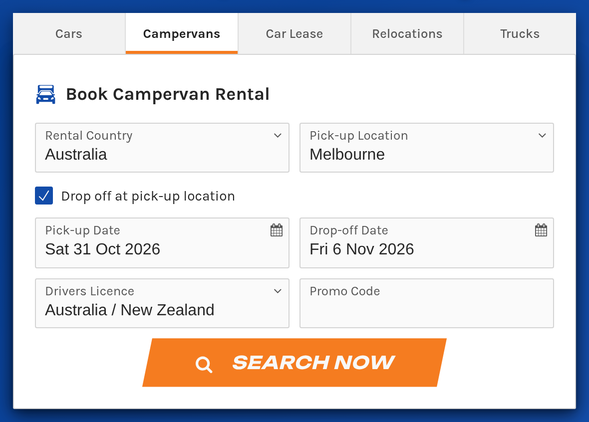
Finishing somewhere else? Untick “Drop off at pick-up location” and you can choose a different drop-off for a one-way trip.
Use the same route and dates when comparing vehicles. A different depot, trip length or date can change both price and availability. If your plans are flexible, run a separate search for the alternative so you can compare the whole cost of each trip.
Jump to views, filters, rental conditions or booking your choice.
Choose how to view the results
On a desktop or wider screen, use the View control above the results to choose Grid, List or Gallery.
List view
List gives you a vehicle-by-vehicle view, while Gallery makes vehicle images easier to scan.

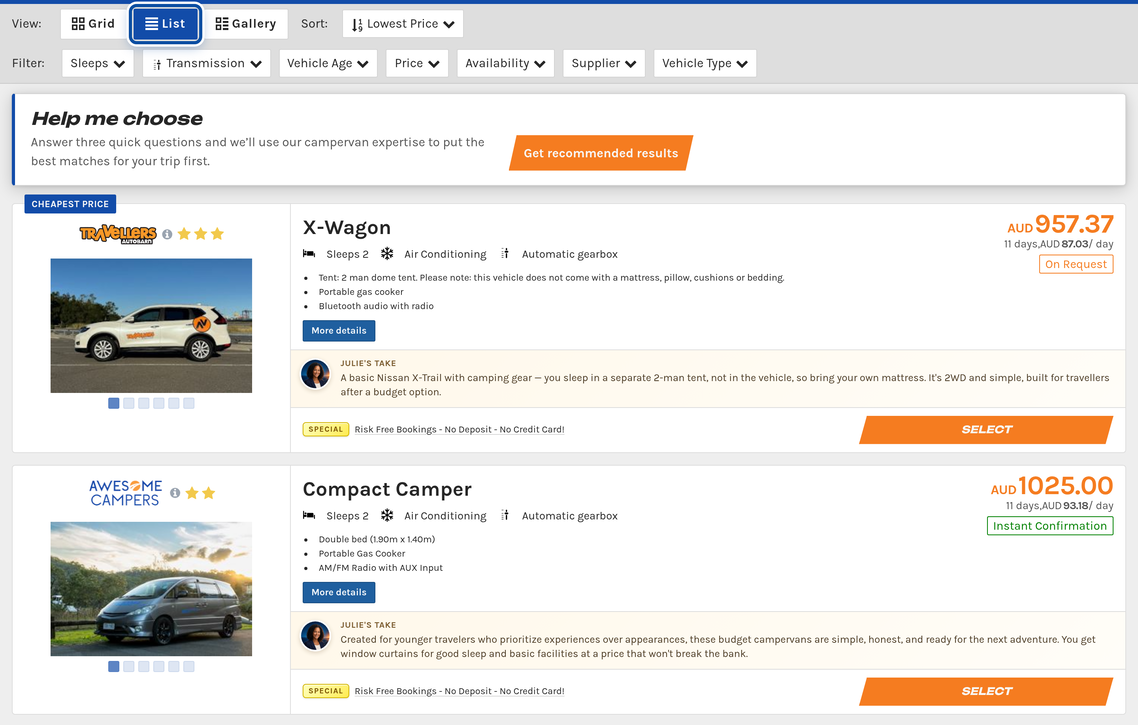
List is the view you see first. Each result shows the rental company, the vehicle's main features, the total price with its daily rate and how it is confirmed.
Grid view
Grid puts the rental companies and their vehicles together, with prices and availability in one comparison. It's useful when you want to compare similar-sized campers across brands rather than work down a price-sorted list.

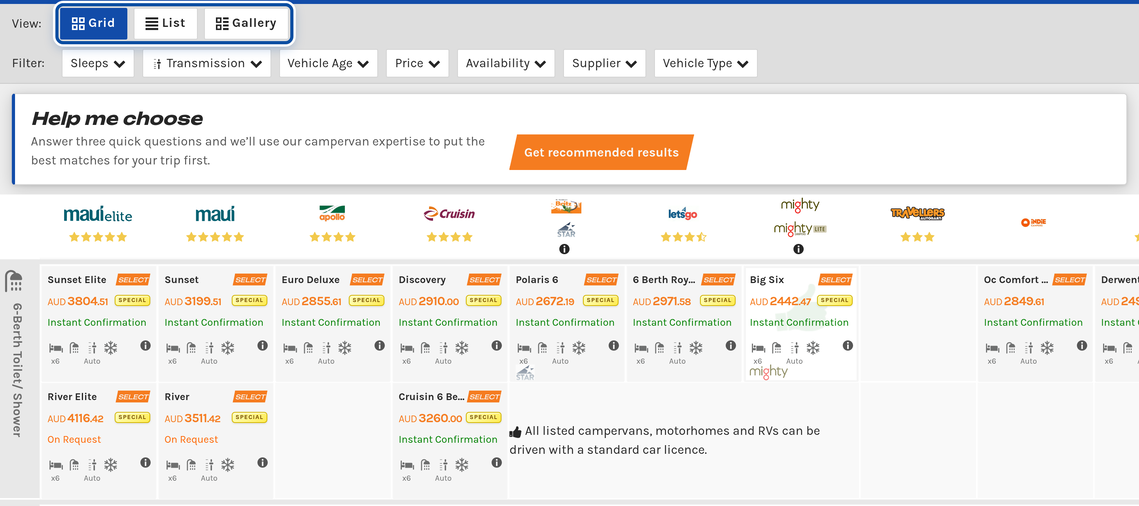
Each row groups campervans by size and facilities, such as six berths with a toilet and shower, with a column for each rental company.
Look at two-, four- or six-berth options to suit your group. A berth is a sleeping place. Check the actual bed layout and approved passenger seats too, especially when travelling with children. Two vehicles that sleep the same number can have very different living space and bed arrangements.
On a phone
On a phone, the controls and layout adapt to the smaller screen. Use the available view controls and open individual vehicle details when you need a closer comparison.

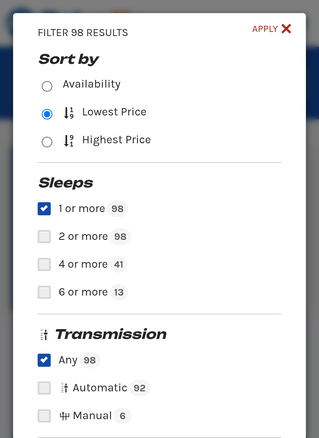
On a phone, sorting and filters share one Filter and Sort panel, with the number of matching results beside each filter option.
Narrow the results with filters
The search offers filters for Sleeps, Transmission, Vehicle Age, Price, Availability, Supplier and Vehicle Type. Start with requirements you can't compromise on, such as sleeping capacity or an automatic gearbox. Add other filters gradually so you can see what each choice removes.

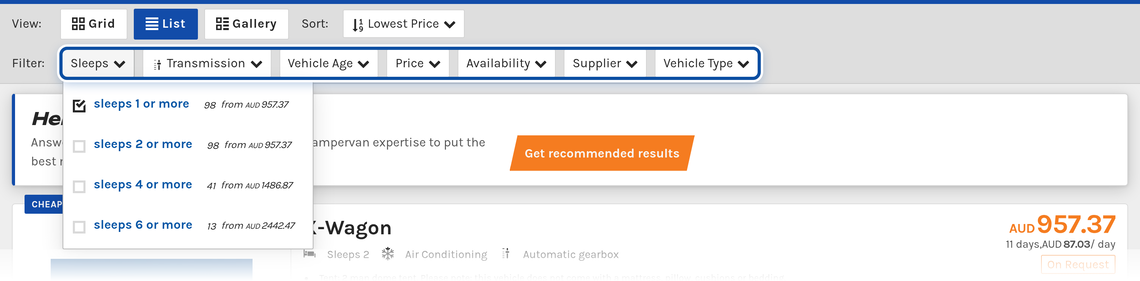
Each filter option shows how many results match, such as campervans that sleep four or more.
In List view, use the sort control to order the remaining results. Lowest price is a useful starting point, but it does not tell you whether the camper has the facilities you need. If very few vehicles remain, review your filters before changing your travel plans.
Read the vehicle details
Open More details for the vehicles you are considering. Compare the practical differences as well as the photos:
- The beds, their sizes and whether they need converting each night.
- The toilet and shower arrangements, cooking equipment and fridge.
- The vehicle's age range, transmission and dimensions.
- Air conditioning details, including whether the living-area system needs a powered campsite.

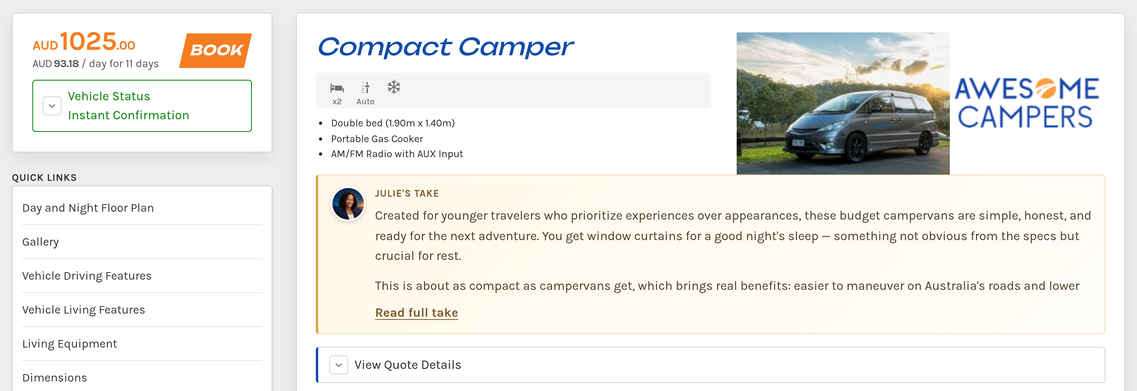
The quick links jump to the floor plan, dimensions and each equipment list.
Where ratings are shown, tell a rental company's brand or quality rating apart from customer reviews. Neither replaces checking the particular vehicle and its inclusions. If a detail you need is missing or unclear, ask before booking.
Compare the rental conditions
The Grid's Supplier Information section helps you compare inclusions and charges across companies. Check the vehicle details and booking conditions as well, because the Supplier Information summaries are a general guide and costs can vary by location or vehicle.

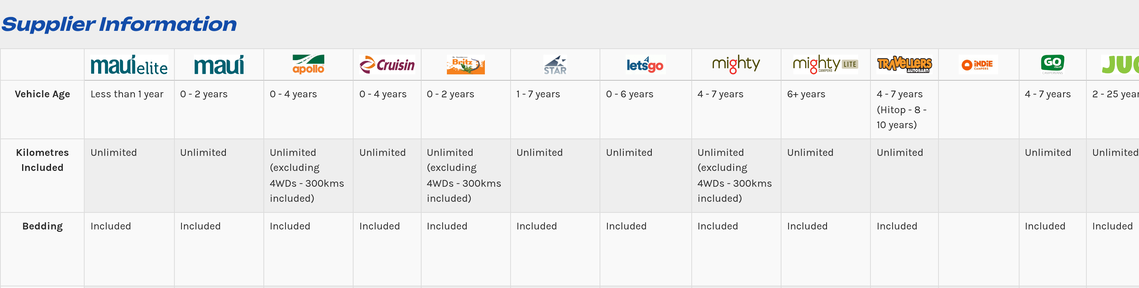
A blank cell means no summary is shown for that company. Its vehicle details have more, and we're happy to help if anything is unclear.
Compare included kilometres, bedding, accessories, additional drivers, one-way charges and any depot or public-holiday fees that apply to your trip. Review the bond, excess and optional excess reduction, including exclusions. A lower daily rate can have a different total once you add what you need.
Check the payment schedule, deposit, cancellation and amendment terms before confirming. Read the driver's minimum age, licence requirements and any age-related charges. If you plan to take a pet, check the company's permission, eligible vehicles and fees. Don't assume that every company or every vehicle allows pets.
Discounts and specials are highlighted in the results where they apply. Open their conditions to check the booking and travel dates, route, minimum hire and eligible vehicles. Compare the quoted total and any amounts payable at pick-up, using the same currency and extras for each option.
Check availability before you book
Instant Confirmation identifies an option that can be confirmed through the booking process. On Request means the rental company still needs to approve availability. A submitted request is not a confirmed booking.

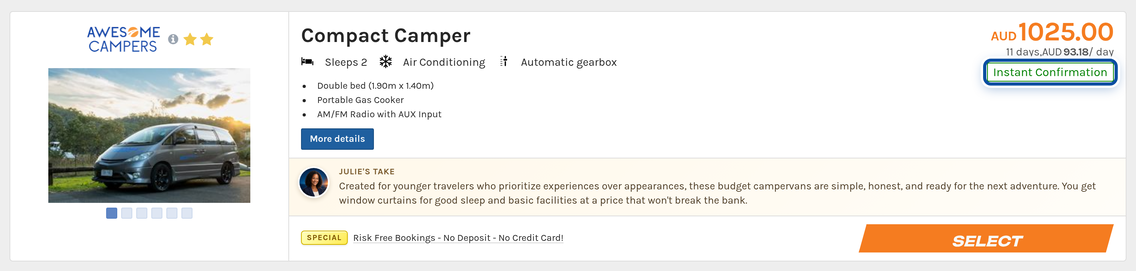
Specials show at the foot of a result, with a link to their conditions.
Use Select on your chosen option and review the booking details and terms. Check the dates, depots, vehicle category, selected extras and payment requirements before submitting. Keep the confirmation and check it against your plans.
If you need help choosing between layouts or understanding a condition, contact DriveNow. For advice on when to start searching, our booking-timing guide covers early booking, last-minute alternatives and availability.
Next steps
- Understanding pricing: what a quote includes and excludes
- Types of campervans available: understanding the vehicle categories
Part of Booking Your Campervan in the Campervan Hire Handbook.